Localization Script
The Localize Project.vi function allows you to translate the modules in the project and the VIs contained within
them (specifically, those whose front panels are visible). The script generates the dictionary format used by
the framework for each module.
- Create Module.vi
- Create Pop-up Window.vi
- Localize Project.vi
- Dictionary Validator.vi
- Check Reentrancy.vi
- Create JSON Nodes from Spreadsheet string.vi
Using the Script
The Localize Project tool is divided into three main sections that work together to translate a project’s UI elements.
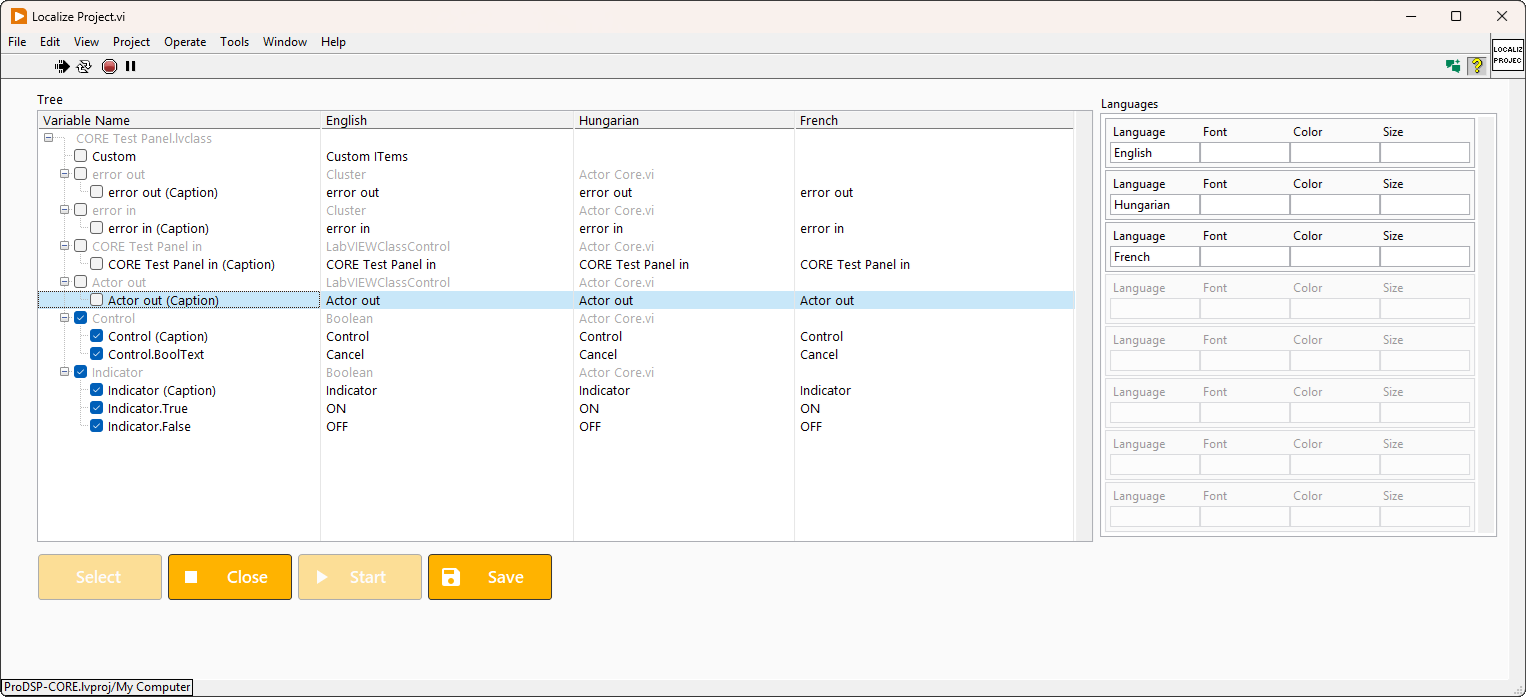
1Translation Tree
2Languages Panel
Configure the active languages for the project. For each language, set the font, color, and size used in the localized UI
3Action Buttons
Control panel for selecting items, starting the localization process, and saving the result
Action Buttons
Select SELECTION
Loads the Translation Tree with the VIs that have been selected in the Project Tree
Close EXIT
Stops the localization process without saving any changes and selections.
Start RUN
Starts the localization process — It scans the front panels of the selected VIs, identifies the UI elements that can be translated, and loads them into the Translation Tree
Save PERSIST
Saves the completed dictionaries to the resources\Dictionaries folder with the module
name + .json as the filename. If the file already exists, it asks the user if they want to overwrite the current file.