Module Table

Module Table Structure
Variables are organized into a three-level hierarchy:
Group LEVEL 1
Top-level category defining the variable’s purpose and lifecycle
Section LEVEL 2
Typically the unique name of the instantiated module
Key LEVEL 3
The unique name of the variable
In our projects, the Group level is typically structured as follows:
Config SAVEABLE
Variables that define the module’s basic operation, are to be saved, and must be retained even after the program is closed
Status PUBLIC
Variables describing the module’s status, primarily intended for public use
Local INTERNAL
Variables used during program execution that control internal operations. Not saved
Creating MT Variables
Variables can be added to the Module Table using MT Set Key Value.vi.
This can be done at any time while the program is running, but if you
want to ensure they are available when the Module Actor Core starts up,
create them in the Initialize Module Keys.vi override of the Module.
Best practice: The Resource Manager loads the saved variables after the module starts and publishes them to the subscribed modules. If you define the variables to be saved as uninitialized, you can check whether the variable has already been loaded by attempting to convert the variant to the expected type.
MT Variable Publicity
After creating variables, you can set their visibility using
MT Set Key Public.vi. As a result, modules subscribed to the variable
will receive notifications of any changes to its value via the
Resource Manager.
The Resource Manager can only save public variables, so Config variables must always be set to public.
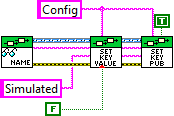
Subscribing to MT Variables
To receive updated values for another module’s public variables, or
to ensure that variables saved by the Resource Manager can be loaded,
you must subscribe to those variables using Subscribe To RM Key.vi.
After subscribing, the Resource Manager sends the modified variables to the subscribed modules, which are then added to the module’s table. The module also receives a Module Key Update event.
You can subscribe at any time, but to manage them uniformly, use the
Initialize Key Subscription.vi override. This is guaranteed to run
after Initialize Module Keys.vi during module initialization.
Subscribing does not automatically retrieve the current value of the
variable. The value is not received until the variable changes,
generating a broadcast. To synchronize immediately after subscribing,
you must trigger a broadcast using the Trigger Broadcast
parameter in Subscribe To RM Key.vi.
A Broadcast Trigger sends an update to every module subscribed to the variable — not just the requesting module. This is resource-intensive. Avoid requesting it per-variable; instead, request the broadcast once for an entire section:
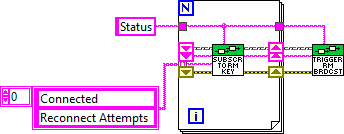
Saving MT Variables
Variables can be saved so that changes made during execution are persisted to storage and retain their values after a restart. Examples include user settings, results of previous actions, or COM port configurations.
This functionality is implemented via the
Resource Manager,
which saves, reloads, and distributes the requested variables. Therefore,
variables to be saved must be public and you must subscribe to them
to receive the reloaded values. Use MT Set Key Savable.vi to mark a
variable for saving.
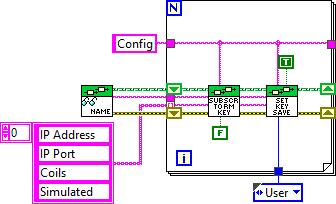
In addition to the standard parameters, the VI includes a Field parameter which specifies which database the Resource Manager uses:
User Field DEFAULT
Saved to the Public Documents folder. Use this for variables that the end user can modify and that should not be overwritten by software updates. The database is created on first launch by copying the default database located alongside the program
Manufacturer Field PROTECTED
Located alongside the program, typically in the Program Files folder. Use this for variables that fundamentally affect the program’s operation and generally do not need to be modified during use. These can be overwritten during software updates
